


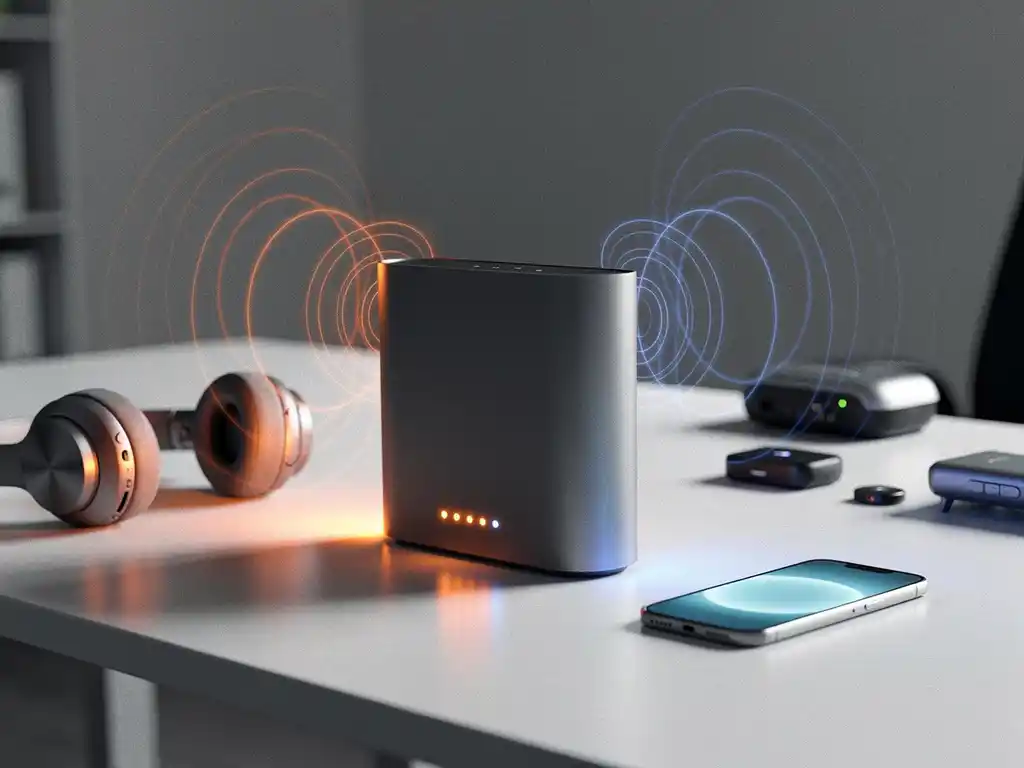
Wireless connectivity issues can be incredibly frustrating, especially when your Wi-Fi suddenly slows down or drops out unexpectedly. One common culprit behind these problems is interference from Bluetooth devices, which operate on the same frequency band as many Wi-Fi networks. Understanding this interference and how to manage it is crucial for maintaining reliable wireless connections in both home and business environments.
The relationship between Bluetooth and Wi-Fi interference affects millions of users daily, yet many people remain unaware of the connection between their wireless headphones, keyboards, and sluggish internet performance. By learning how these technologies interact and implementing the right solutions, you can significantly improve your network stability and performance.
What Is Bluetooth and Wi-Fi Interference?
Bluetooth and Wi-Fi interference occurs when both technologies operate simultaneously on the same 2.4 GHz frequency band, causing signal disruption and reduced performance for both wireless connections. This interference happens because both technologies use overlapping radio frequencies, creating competition for the same wireless spectrum.
The 2.4 GHz band is divided into multiple channels, with Wi-Fi typically using channels 1, 6, and 11 to avoid overlap. Bluetooth devices use a technique called frequency hopping, rapidly switching between 79 different frequencies within the 2.4 GHz band up to 1,600 times per second. When Bluetooth hops onto frequencies currently being used by Wi-Fi, interference occurs.
This interference manifests in several ways: slower internet speeds, intermittent connection drops, increased latency, and reduced range for both Wi-Fi and Bluetooth devices. The severity depends on factors such as device proximity, signal strength, and the specific frequencies being used by each technology at any given moment.
How Does Bluetooth Interference Affect Wi-Fi Performance?
Bluetooth interference degrades Wi-Fi performance by causing packet loss, increasing retry attempts, and reducing data throughput, particularly when devices operate in close proximity on the crowded 2.4 GHz frequency band. The interference forces Wi-Fi networks to work harder to maintain connections, resulting in noticeable slowdowns and connectivity issues.
The most common performance impacts include significant speed reductions, often dropping Wi-Fi speeds by 10% to 50% when multiple Bluetooth devices are active nearby. Connection stability also suffers, with users experiencing frequent disconnections, especially during high-bandwidth activities such as video streaming or file transfers.
Latency increases substantially during interference events, making real-time applications such as video calls or online gaming nearly unusable. The Wi-Fi network compensates by increasing transmission power and retry attempts, which consumes more battery life on mobile devices and creates additional network congestion.
Distance plays a crucial role in interference severity. Devices within 10 meters of each other experience the most significant interference, while the impact diminishes rapidly beyond 30 meters. The interference is also bidirectional, meaning Wi-Fi signals can disrupt Bluetooth connections, causing audio dropouts in headphones or input lag with wireless keyboards and mice.
Which Bluetooth Devices Cause the Most Wi-Fi Problems?
Bluetooth devices that maintain continuous connections and transfer large amounts of data cause the most significant Wi-Fi interference, including wireless headphones, speakers, keyboards, mice, and file-transfer devices. These devices create persistent interference patterns that can severely impact nearby Wi-Fi networks.
Wireless audio devices top the list of problematic Bluetooth devices because they require constant data streaming to maintain audio quality. Bluetooth headphones and speakers, especially those using older Bluetooth standards, create continuous interference that can reduce Wi-Fi speeds by up to 40% in the immediate vicinity.
Gaming peripherals such as wireless keyboards and mice generate frequent interference bursts, particularly during intense gaming sessions with rapid input commands. While individual interference events are brief, the cumulative effect can cause noticeable Wi-Fi performance degradation and increased latency.
Bluetooth tethering and file-transfer operations create some of the most severe interference because they use maximum bandwidth. When smartphones share internet connections via Bluetooth or transfer large files between devices, the resulting interference can make nearby Wi-Fi networks nearly unusable.
Older Bluetooth devices using versions 2.0 and earlier lack advanced interference-mitigation features, making them particularly disruptive to Wi-Fi networks. These legacy devices often use more aggressive transmission patterns and lack the sophisticated frequency management found in newer Bluetooth standards.
How Can You Fix Bluetooth Wi-Fi Interference Issues?
The most effective solutions for fixing Bluetooth Wi-Fi interference include switching Wi-Fi to the 5 GHz band, maintaining physical separation between devices, upgrading to newer Bluetooth standards, and optimizing channel selection to minimize frequency overlap. These approaches address the root causes of interference while maintaining functionality for both technologies.
Switching your Wi-Fi network to the 5 GHz band provides the most immediate and comprehensive solution. The 5 GHz frequency operates completely separately from Bluetooth’s 2.4 GHz band, eliminating interference entirely. Most modern routers support dual-band operation, allowing you to connect interference-sensitive devices to 5 GHz while keeping legacy devices on 2.4 GHz.
Physical separation is highly effective due to rapid signal degradation over distance. Positioning Bluetooth devices at least 10 meters away from Wi-Fi routers and access points significantly reduces interference. For desktop setups, using USB extension cables to move Bluetooth adapters away from Wi-Fi antennas can provide substantial improvements.
Upgrading to newer Bluetooth versions provides built-in interference mitigation. Bluetooth 4.0 and later include adaptive frequency hopping and improved coexistence protocols that better coordinate with Wi-Fi networks. These newer standards automatically avoid busy Wi-Fi channels and use lower-power transmission when possible.
Wi-Fi channel optimization involves manually selecting channels with minimal Bluetooth overlap. Channels 1 and 11 typically experience less Bluetooth interference than channel 6, which sits in the center of Bluetooth’s frequency-hopping range. Using Wi-Fi analyzer tools can help identify the cleanest channels in your specific environment.
Hoe IMPLI-CIT helpt bij WiFi-interferentieproblemen
We begrijpen dat WiFi-interferentie kritieke bedrijfsprocessen kan verstoren en kostbare downtime kan veroorzaken. Onze ervaren technici bieden uitgebreide oplossingen voor draadloze connectiviteitsproblemen in bedrijfsomgevingen wereldwijd.
Onze aanpak voor WiFi-interferentieproblemen omvat:
- Uitgebreide netwerkanalyse om interferentiebronnen te identificeren
- Professionele optimalisatie van WiFi-kanalen en frequentiebanden
- Implementatie van dual-bandnetwerkconfiguraties
- 24/7 monitoring en proactieve probleemoplossing
- Hardware-upgrades en implementatie van moderne Bluetooth-standaarden
Onze gecertificeerde Field Engineers reizen naar uw locatie om ter plekke ondersteuning te bieden, waarbij we ervoor zorgen dat uw draadloze infrastructuur optimaal functioneert zonder interferentie. Neem contact met ons op om te ontdekken hoe we uw WiFi-prestaties kunnen verbeteren en interferentieproblemen definitief kunnen oplossen.
Frequently Asked Questions
How can I tell if Bluetooth is causing my Wi-Fi problems?
Monitor your Wi-Fi performance while turning Bluetooth devices on and off. If you notice speed improvements or more stable connections when Bluetooth is disabled, interference is likely the culprit. You can also use Wi-Fi analyzer apps to check if your network performance degrades when Bluetooth devices are actively transmitting data.
Will switching to 5 GHz Wi-Fi affect my older devices?
Older devices that only support 2.4 GHz Wi-Fi won't be able to connect to a 5 GHz network. The best approach is to use a dual-band router that broadcasts both frequencies simultaneously, allowing newer devices to use the interference-free 5 GHz band while maintaining compatibility with legacy devices on 2.4 GHz.
Can I use Bluetooth and Wi-Fi simultaneously without problems?
Yes, but it requires proper setup. Use 5 GHz Wi-Fi when possible, maintain physical distance between devices, and ensure your Bluetooth devices use version 4.0 or newer. Many modern devices also include built-in coexistence protocols that help both technologies work together more harmoniously.
What's the minimum distance needed to reduce Bluetooth-Wi-Fi interference?
Keep Bluetooth devices at least 10 meters away from your Wi-Fi router or access points for noticeable improvement. However, even 3-5 meters of separation can help reduce interference significantly. For desktop setups, using USB extension cables to position Bluetooth adapters away from Wi-Fi antennas can be very effective.
Are there any router settings I can adjust to minimize Bluetooth interference?
Yes, manually set your 2.4 GHz Wi-Fi to use channels 1 or 11 instead of channel 6, as these experience less Bluetooth interference. Enable band steering if available to automatically direct capable devices to 5 GHz, and consider reducing 2.4 GHz transmission power if you have a small coverage area to minimize interference overlap.
Do mesh networks help with Bluetooth interference issues?
Mesh networks can help by providing multiple access points, allowing devices to connect to the nearest node with potentially less interference. However, if all nodes operate on 2.4 GHz, you may still experience interference. The key benefit is better overall coverage and the ability to position nodes away from high-interference areas.
What should I do if I can't upgrade my Bluetooth devices but still experience interference?
Focus on optimizing your Wi-Fi setup: switch to 5 GHz where possible, manually select Wi-Fi channels 1 or 11, and create physical separation between devices. You can also schedule bandwidth-intensive activities during times when Bluetooth usage is minimal, or consider using wired connections for critical applications.